Running the Dremio collector in Cloud
Configuring the cloud collector for Dremio
To configure the cloud collector for Dremio:
In the Catalog experience, go to the Admin page > Metadata collectors section.
Click the Add a collector button.
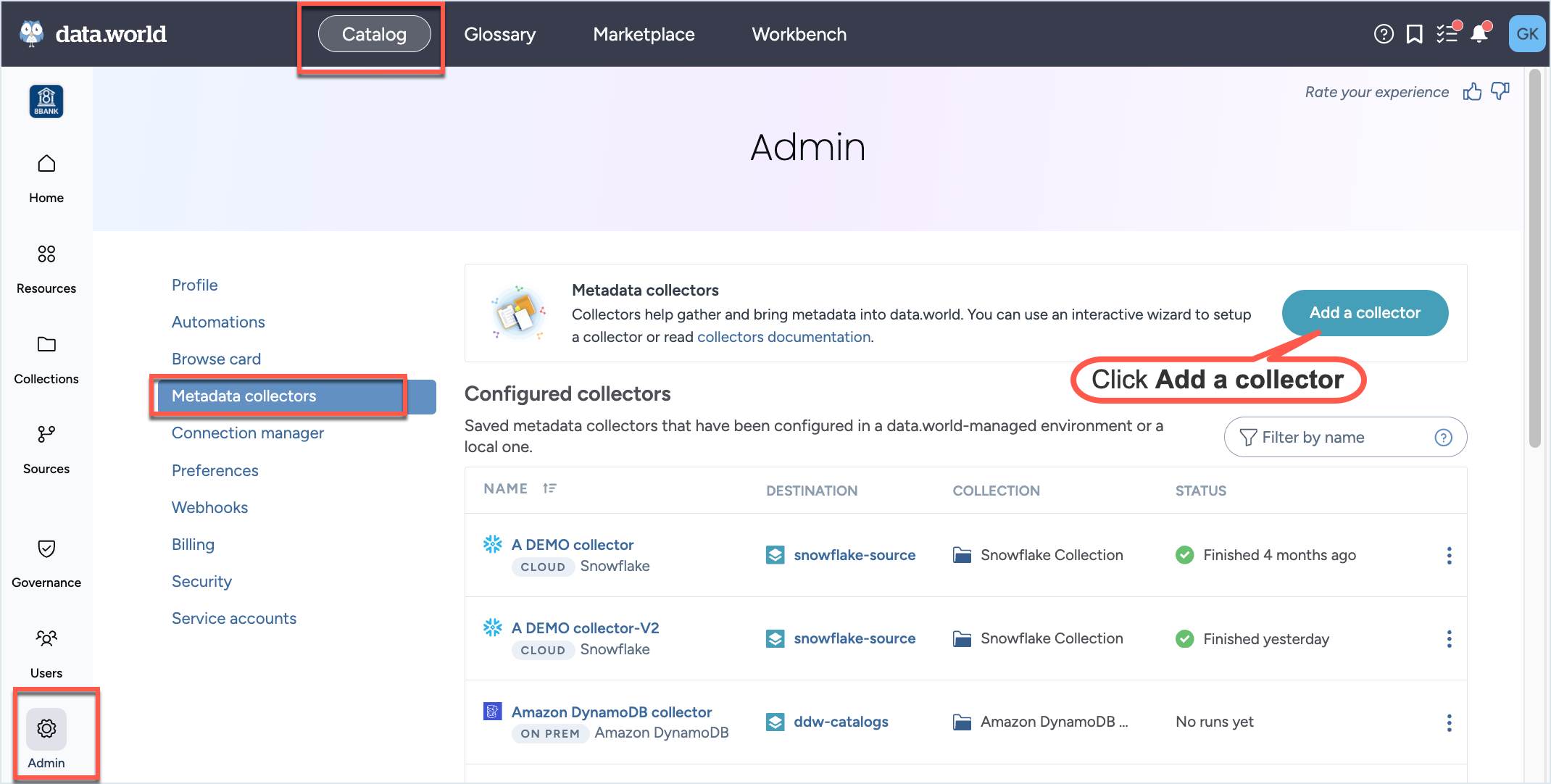
On the Choose metadata collector screen, select the correct metadata source. Click Next.
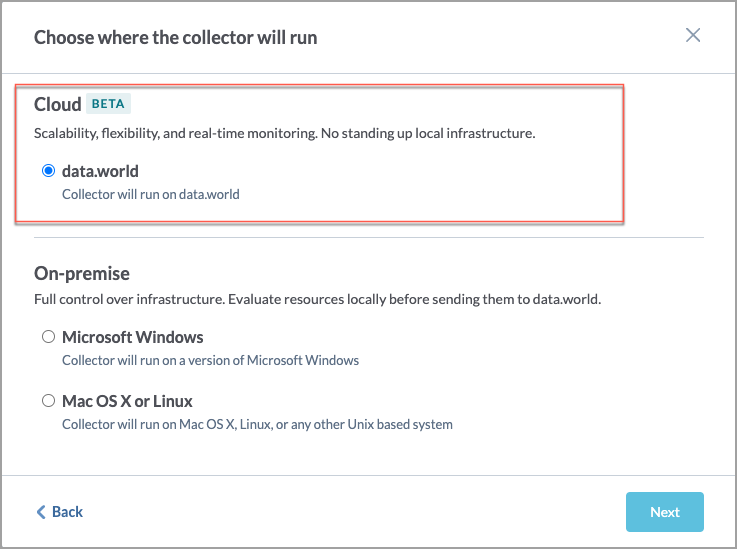
On the Choose where the collector will run screen, in the Cloud section, select data.world. Click Next.
On the Configure a cloud Dremio Collector screen, set the following:
On the next screen, set the following parameters and click Next.
Table 2.Field name
Description
Required?
Server
The hostname of the database server to connect to.
Yes
Server port
The port of the database server (if not the default).
No
Database
The name of the database to connect to. You can add multiple databases by clicking the Add item button.
Note: If you don't specify this property, the collector will harvest metadata from all databases. You can then use the optional exclude database parameter to exclude specific databases.
Yes
Username
The username to use to make the JDBC connection.
Yes
Password
Specify this option to provide the password for the database on the command line.
Yes
Schemas to collect
Select from one of the following options: Collect all schema, Specify which schema to collect.
Yes
Collect all schema
Catalog all schemas to which the user has access.
Specify which schema to collect
Select this option and then specify the names of the database schema to be catalog.
Exclude Schema
Specify the name or regular expression of the database schema to be excluded. Applicable only if Collect all schema is specified.
No
Include Information Schema
Include the database's Information Schema in catalog collection. Applicable only if Collect all schema is specified.
No
Excluded databases
When the database parameter is not provided in the command/YAML file, the collector harvests metadata from all databases. If you want the collector run to not harvest specific databases, use the exclude database parameter and specify one or more regular expressions to indicate databases not to be cataloged. For example, use a regular expression such as ^(databaseOne|databaseTwo|databaseThree)$
Note: This parameter is ignored if the database is specified. If you wish to use the exclude database parameter,you must not set the database parameter.
No
On the next screen, set the following advanced parameters and click Next.
Table 3.Field name
Description
Required?
Disable lineage collection
Skip harvesting of intra-database lineage metadata.
No
Disable extended metadata collection
Skip harvesting of extended metadata for resource types such as database, schema, table, columns functions, stored procedures, user defined types, synonyms. Basic metadata for these resource types will still be harvested.
No
Enable column statistics collection
To enable harvesting of column statistics (i.e., data profiling).
Note: Activating the profiling feature may extend the running time of the collector. This is because the collector needs to read the table data to be able to gather metadata for profiling
No
Target sample size for column statistics
The number of rows sampled for computation of column statistics and string-value histograms
No
Enable sample string values collection
Enable sampling and storage of sample values for string-valued columns.
No
Exclude system functions
Don’t enable this option. This functionality isn’t currently available.
No
Server environment
If your provided server name is localhost use this to give a friendly name to the environment in which your database server runs to help differentiate it from other environments.
No
Database ID
A unique identifier for this database - will be used to generate the ID for the database (this is optional, you only need to provide this if the database name used for the connection is not sufficiently unique to completely identify the database).
No
JDBC Properties
JDBC driver properties to pass through to driver connection, as name=value. Use the parameter multiple times for multiple properties.
No
SQL parsing timeout
Specify the timeout in seconds for SQL parsing during lineage collection. The default is 60.
No
Enable Sample Data
Specify whether to collect sample data for tables and views. When enabled, a small sample of rows is packaged as a Parquet file and attached to each table resource.
No
Sample Size for Sample Data
Specify the number of rows to sample per table for sample data preview. The default is 10.
No
On the next screen, set the following Dremio API options and click Next.
Table 4.Field name
Description
Required?
Dremio API server
Dremio API server host for lineage collection. Specify the API URL, include protocol and port.
No
(required if you want to harvest lineage information.)
Use TLS
Use TLS for Dremio API connections.
No
Maximum retries
Specify the amount of times to retry an API call which has failed. The default value is 5.
No
API Retry delay
Specify the amount of time in seconds to wait between retries of an API call which has failed. The default is to try increasing intervals starting at 2 seconds.
No
On the next screen, set the following properties if you want to set up Sensitive data classification and click Next.
Table 5.Field name
Description
Required?
Enable sensitive data discovery
Enable the sensitive data classification option.
Yes
Sample Size for Sensitive Data Classification
Specify the number of rows to sample from each column for classification. The default is 1000 if not specified. Note, the actual sample size may vary due to database sampling methods.
No
Base URL for Classification Provider
Specify the base URL for the sensitive data classification provider API. For example, http: //HOSTNAME:8080 . This is required information.
Note: Reach out to your customer representative for assistance with setting up these values
Yes
API Key for Classification Provider
Specify the API key for the sensitive data classification provider, if an API key is required.
No
On the next screen, provide the Collector configuration name and an optional Configuration description, and set the run schedule. You can also set the schedule at a later point.
Click Save and View to go the collector details page.
Scheduling collector runs
Important things to note:
Different collectors can be scheduled to run at the same time, but one collector can only run once a day.
It is recommended that you schedule the runs in off-peak hours.
The collector runs in the timezone in which the scheduler is located. For example, if the scheduler sets the collector runs from PST timezone, the collectors will follow the PST timezone.
Runs may start up to one hour after the scheduled time.
Cloud collectors are designed to automatically run against the latest version of the collector supported by the UI.
To schedule collector runs:
On the Configured collectors page, locate the collector you want to run on a schedule.
Click the Edit configurations button.
Go to the screen where you can set the schedule for the collector and set the following:
Enable the Scheduled runs option.
From the Frequency dropdown, select from Daily, Weekly, or Monthly.
For Weekly and Monthly options, select the day when the collector should run.
Select the time for running the collector.
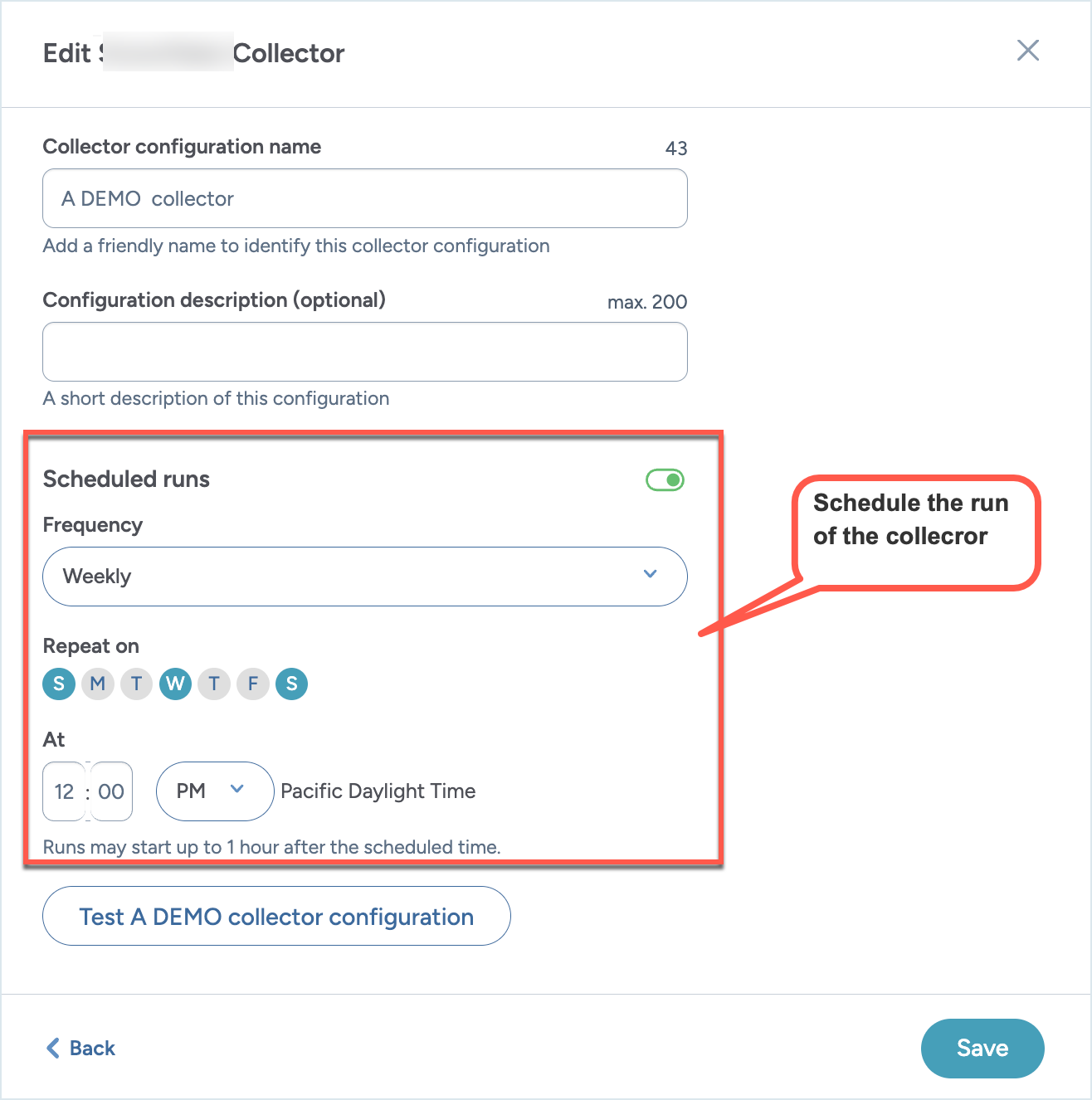
Click Save and view. The schedule and next run date and time are displayed on the collector details page.
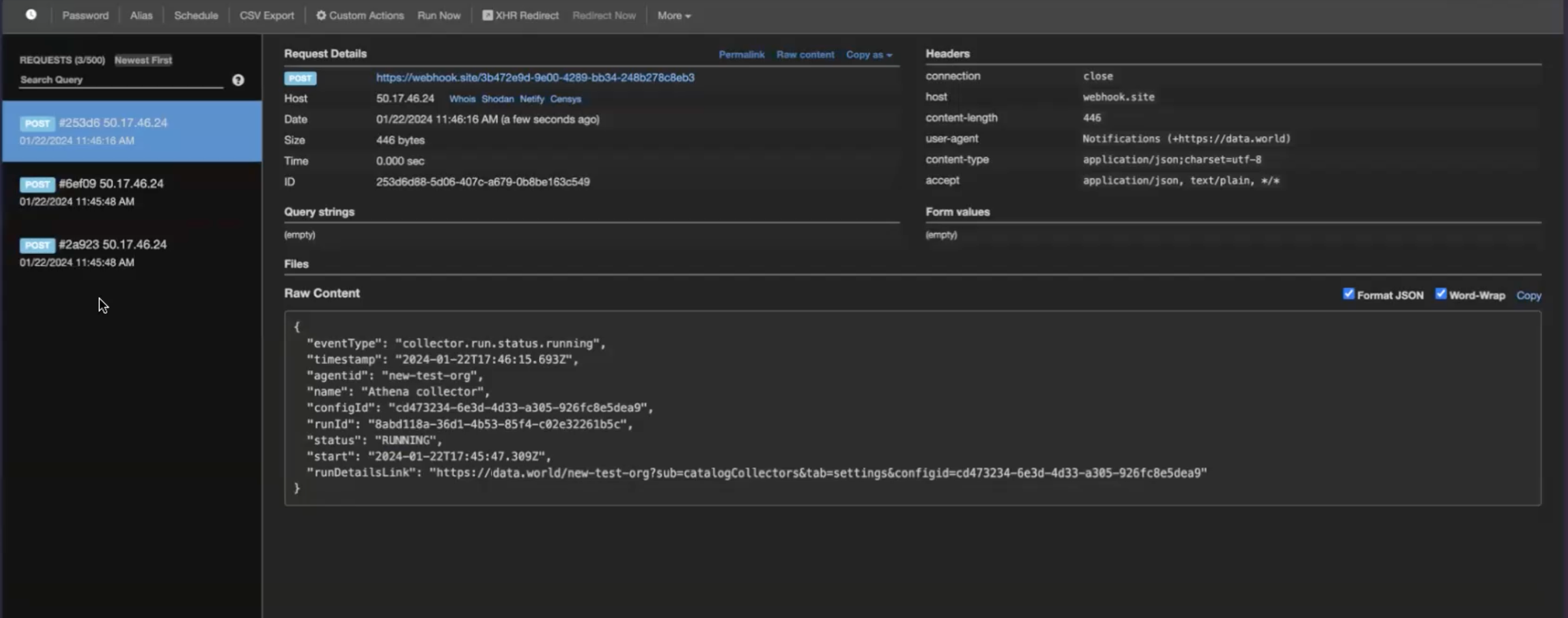
To get notifications about the collector runs, simply setup web hooks at the Organization level from the Catalog experience> Admin page. The Webhooks will automatically start capturing the Status events (Pending, Provisioning, Running, Completed, Error, Cancelled) for the collector runs.
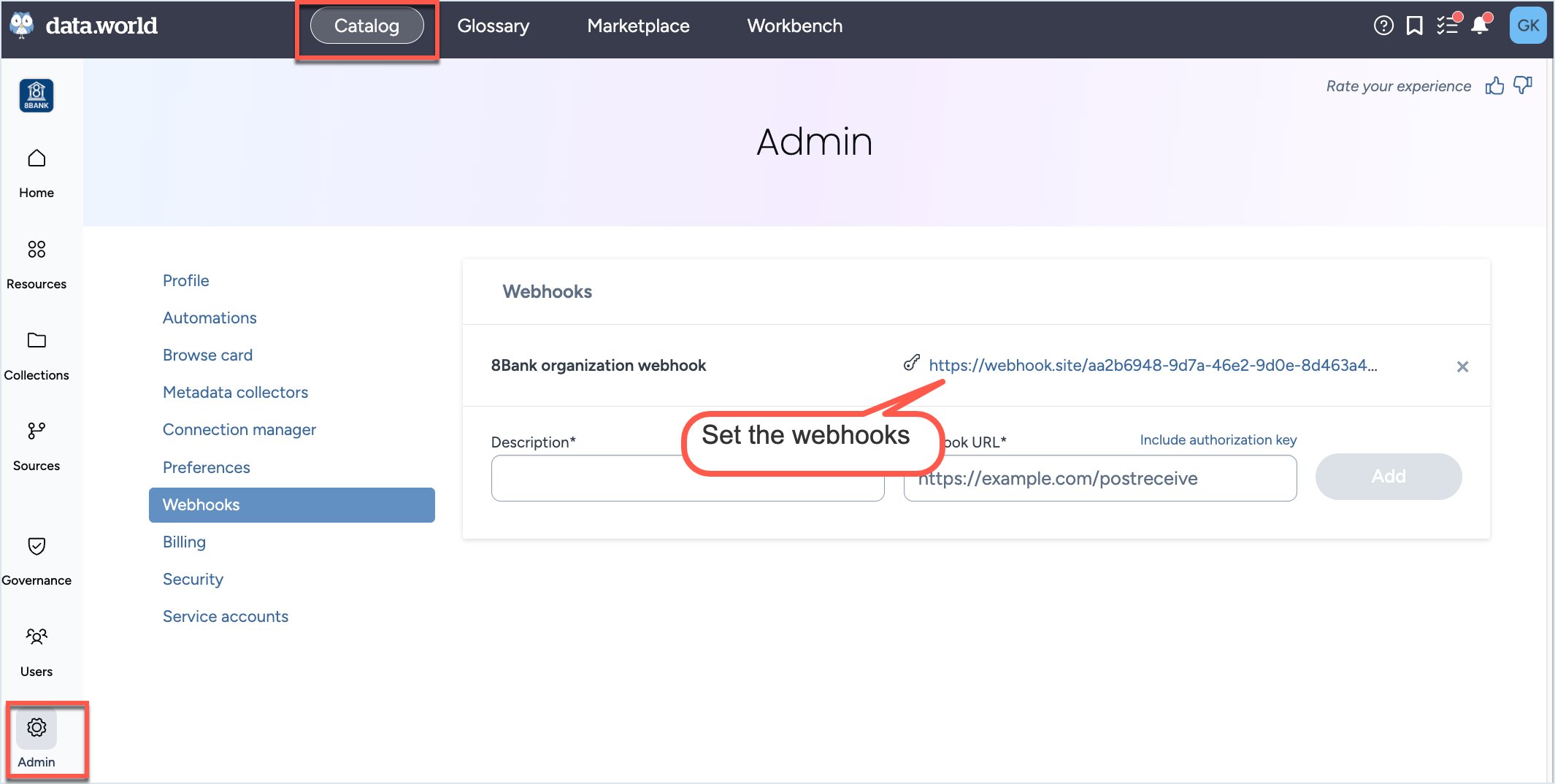
Sample data captured by the webhook.
Running collectors manually
After setting up the collector configuration, it's recommended to manually execute it once to confirm everything is set up correctly. Even for collectors scheduled to run automatically, you can initiate them manually at any time. Cloud collectors are designed to automatically run against the latest version of the collector supported by the UI.
To run the collectors manually:
On the Configured collectors page, locate the collector you want to run.
On the collector configuration details page, click the Run now button. Alternatively, on the Configured collectors page, click the Three dot menu and click Run/Sync now button.
On both pages, the Status field shows the status as Running with information about time elapsed since the run was started.
The collector starts running in the background and you can navigate away from the page at any time. If a collector run errors out, the Status section and the Status field update to an Error state.
After the collector has completed the required pre-configuration steps and starts harvesting the metadata, you get an option to Cancel the harvesting process, if you want. The Status section and the Status field update to Canceled.
After the collector run has completed, the Status section of the collector configuration details page updates to show the successful status. The Last run summary page also updates to show the total number of resource collected and total number of types of resources collected. The Resources collected by type gives granular level information about the number of resources collected for each type of resource.
Browse to the Collection and Dataset specified while running the collector to view the collector output.
To get notifications about the collector runs, simply setup web hooks at the Organization level from the Catalog experience > Admin page. The Webhooks will automatically start capturing the Status events (Pending, Provisioning, Running, Completed, Error, Cancelled) for the collector runs.
Sample data captured by the webhook.
Canceling a collector run
After starting a collector run, you can cancel it if needed.
Important things to note:
Logs generate only after the collector starts up (about 5 minutes). No logs are available if the collector is canceled before this period.
After canceling a run, the collector produces the logs within 5 minutes
To stop a running collector:
Locate the running collector you want to stop. After the collector has completed the required pre-configuration steps and starts harvesting the metadata, you get an option to Cancel it.
On the collector configuration details page, click the Cancel run button. Alternatively, on the Configured collectors page, click the Three dot menu and click Cancel run button.
The collector stops running. On both pages, the Status field shows the status as Canceled with information about time elapsed since the run was canceled.
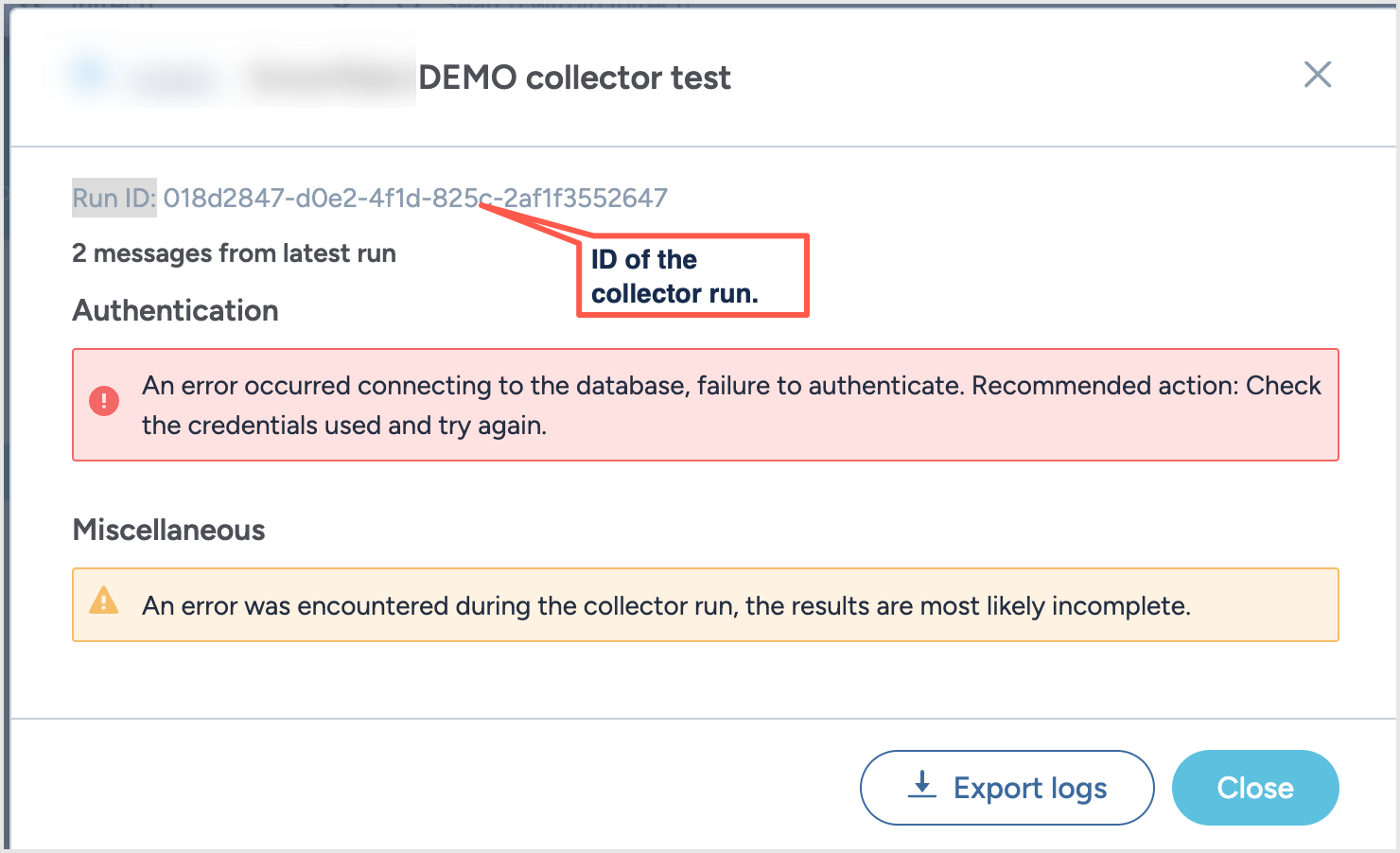
The collector produces a log file in 5 minutes after stop running. To download a logs, click the View debugging info link. A pop-up window opens.
In the pop-up window, click Export logs to download the log file. The window also includes the Run ID of the collector run that failed. While reporting this issue to data.world support team, include this Run ID to help expedite the troubleshooting process.
Copying collector configurations
After you have configured a collector for a source system, you can easily create a copy of the configuration to configure another collector for the same source system but for different parameters.
To copy collector configurations:
On the Configured collectors page, locate the collector configuration you want to copy.
From the Three dot menu, click Duplicate configuration.
In the Edit Collector window, provide a new name for the collector configuration. Optionally, set a schedule. Click Save and view.
You are taken to the copied collector configuration page. Click the Edit Configuration button to adjust the details of the configuration.
Deleting configurations
Important things to note:
Deleting the configuration will not affect the resources that were collected from previous runs.
Any scheduled future runs for the collector are suspended.
To delete a configuration:
On the Configured collectors page, locate the collector configuration you want to delete.
From the Three dot menu, click the Delete configuration button.
Confirm the deletion. The configuration is deleted and removed from the Configured collectors page.