Reviewing users, groups, and collections
View every member and group in your organization, the access each group has, and who has access to each collection. Use this information to plan who needs access after the migration.
Reviewing users, groups, and collections
To review users and groups:
In the Migration Portal, select the organization that you want to review.
In the left navigation, select Users & Groups.
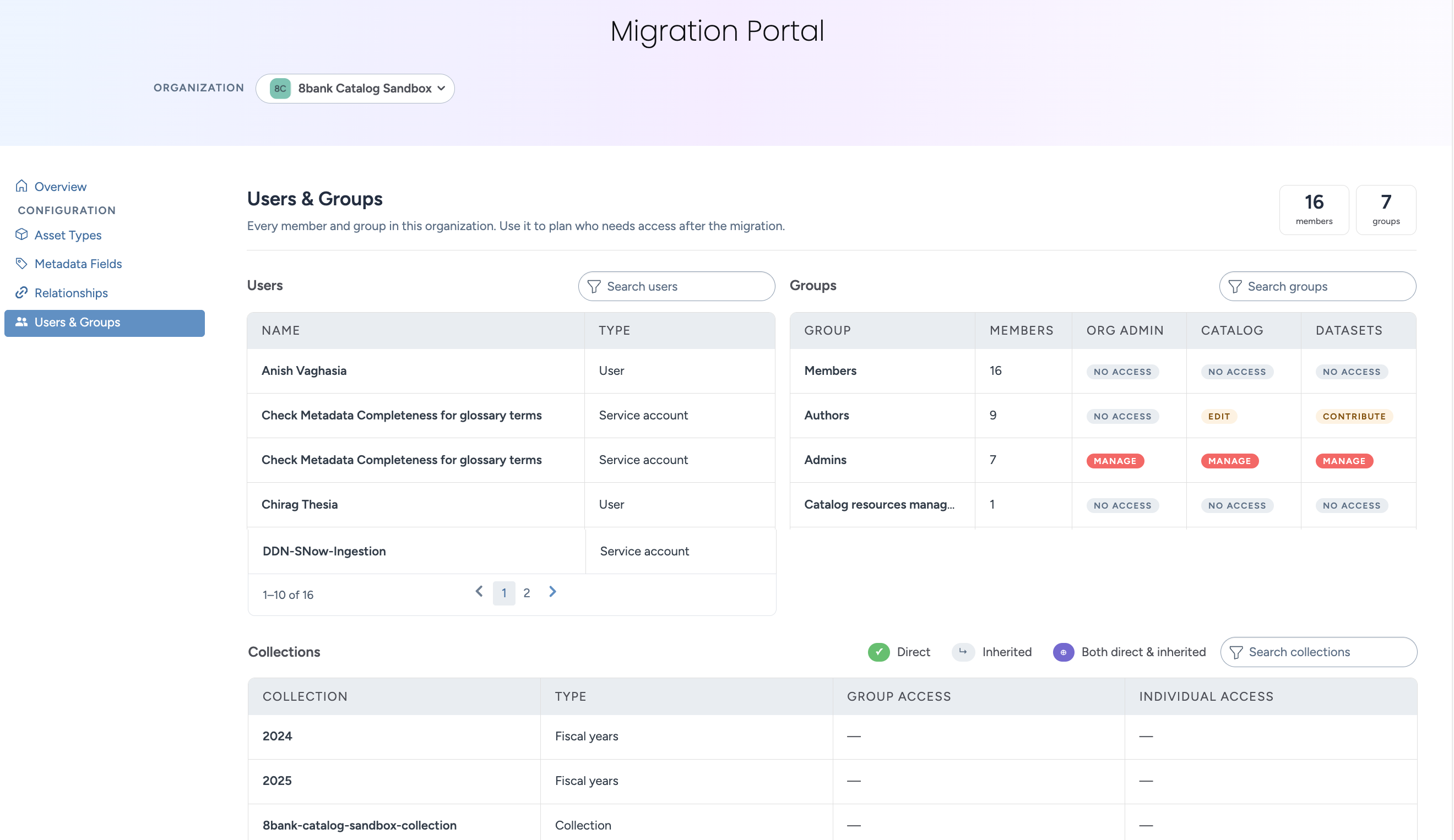
The page shows the number of members and groups, and three tables.
Users: Each member's name and type, such as User, Service account, or Org.
Groups: Each group with its number of members and its access level for Org admin, Catalog, and Datasets.
Collections: Each collection with its type, group access, and individual access. Icons show whether access is direct, inherited, or both.
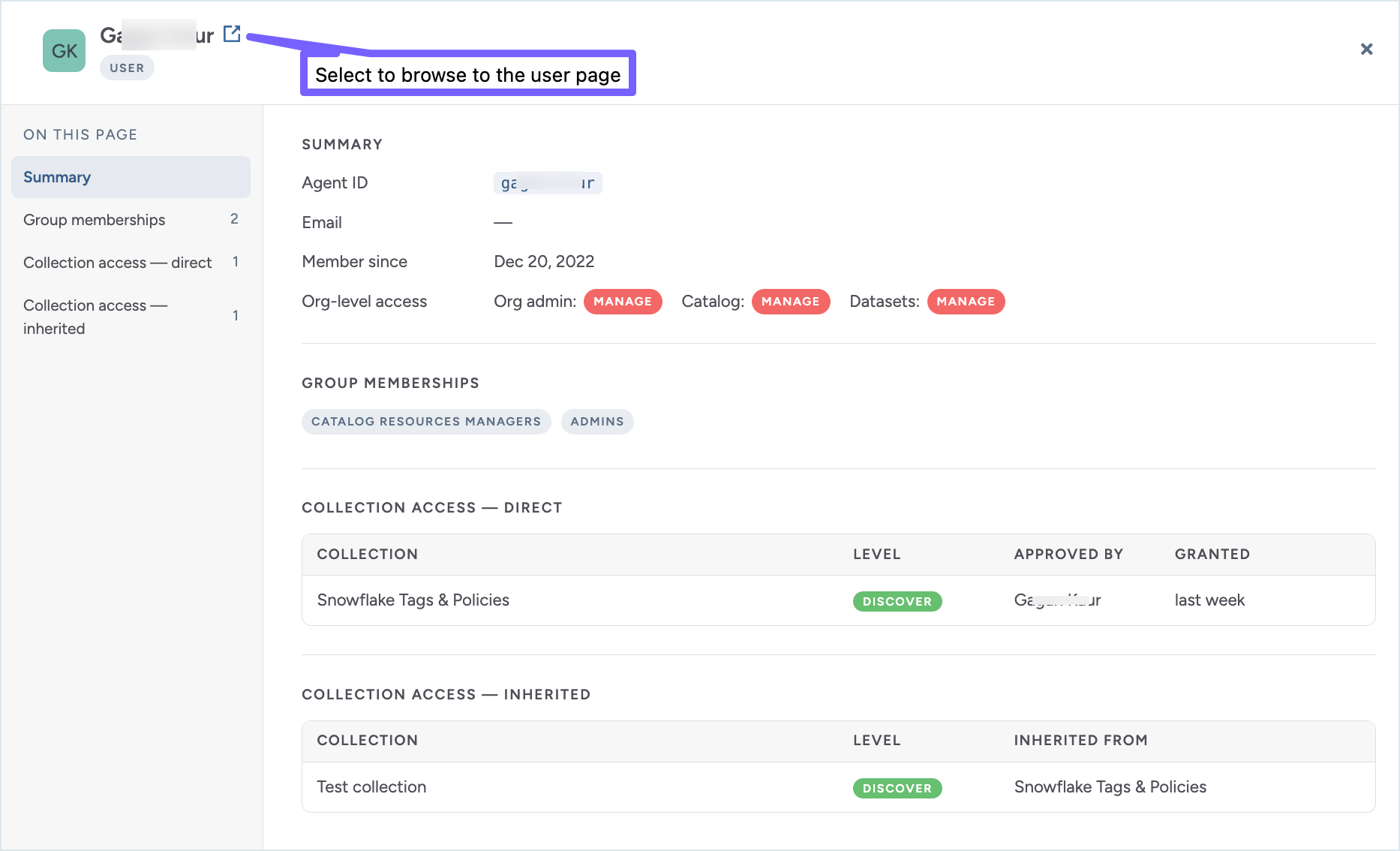
Select a user to open the details for that user.
The agent ID, email, and the date the user became a member.
Org-level access for Org admin, Catalog, and Datasets.
The groups that the user belongs to.
Collection access, split into direct access, inherited access, and access through groups. For access through groups, the view shows the access level, the group, and the collection it is inherited from.
To go to the user in data.world, select Open next to its name in the details view.
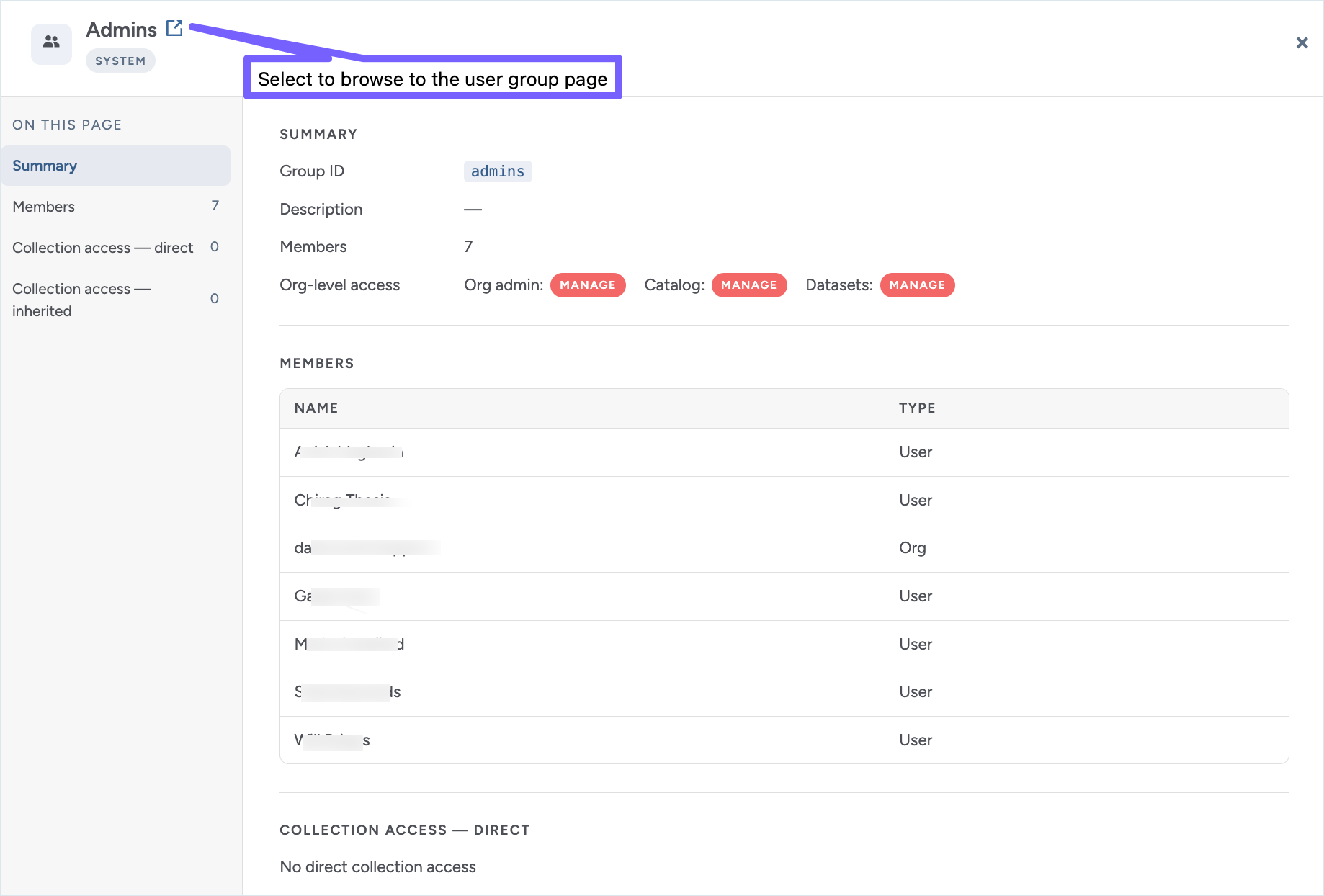
Select a user group to open the details for that user group.
The group ID and the number of members.
Org-level access for Org admin, Catalog, and Datasets.
The members of the group, with each member's name and type.
Collection access, split into direct access and inherited access.
To go to the group in data.world, select Open next to its name in the details view.
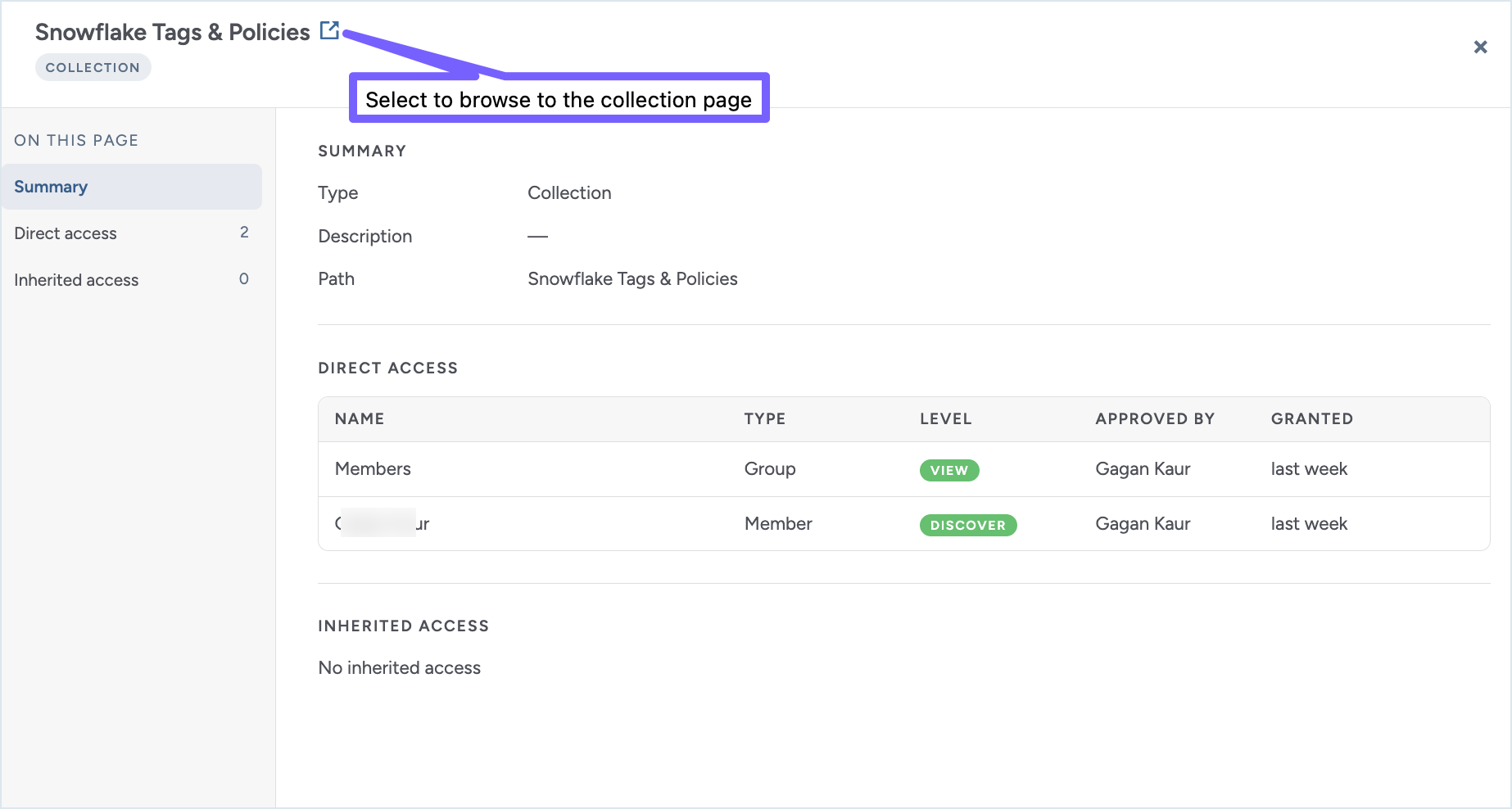
Select a user group to open the details for that user group.
The collection type.
Direct access: each user or group with access, its type, its access level, who approved the access, and when it was granted.
Inherited access.
To go to the collection in data.world, select the Open icon next to its name in the details view.