Previewing sample data for resources
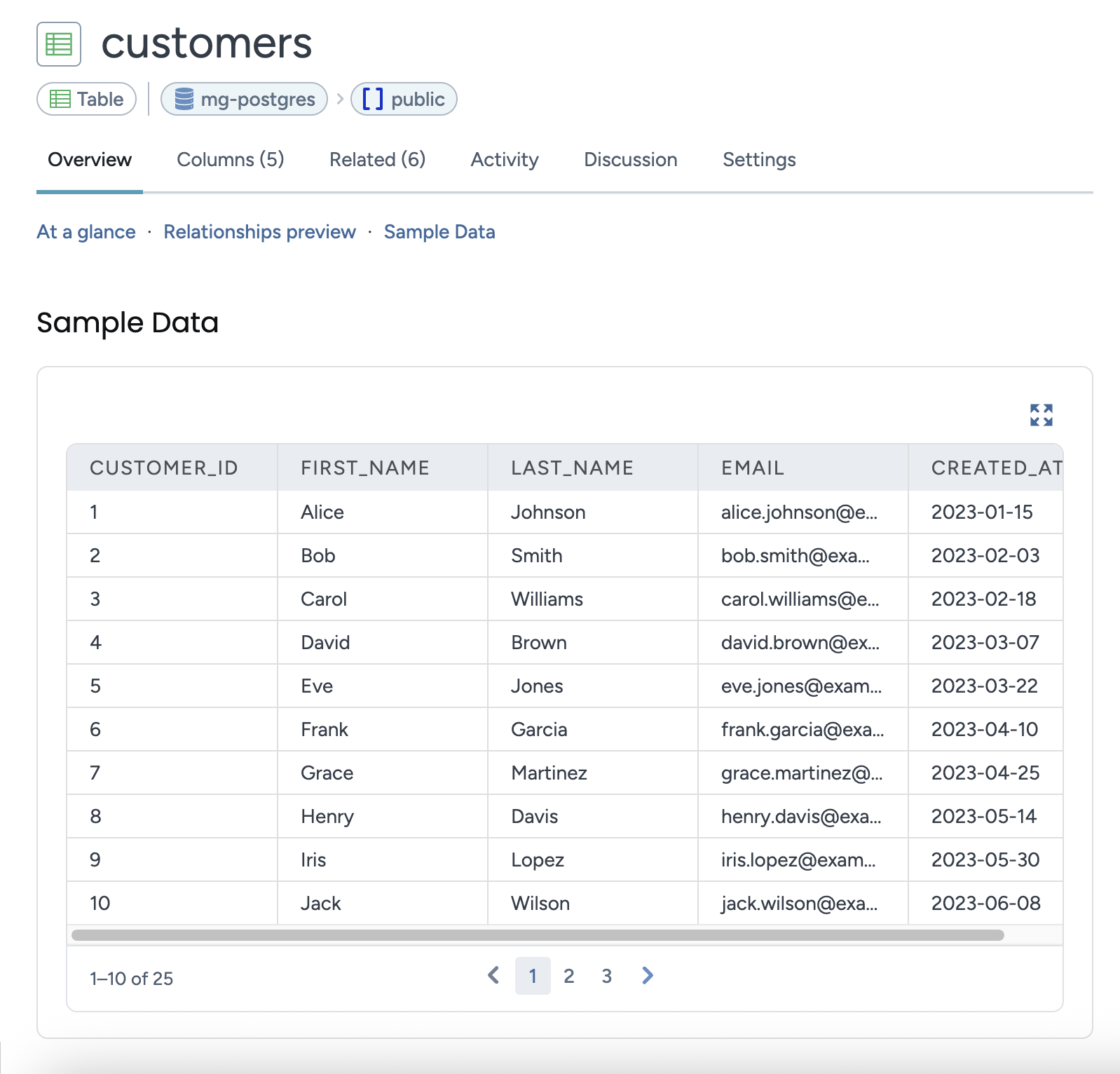
Sample data shows a few representative rows from a table or view directly on its resource page in the catalog. Stewards and analysts can evaluate whether an asset is useful and understand its shape and semantics during discovery—without querying the source system or requesting full access to the data.
Access to sample data is controlled separately from normal metadata. Sensitive values can be masked or excluded, and users below a minimum permission level don't see sample data at all.
When sample data collection is enabled on a collector, the collector captures a small sample of rows for each table and view it harvests. The sample is stored as a Parquet file and attached to the corresponding resource in the catalog, where it appears as a table on the resource's Overview tab.
Supported data sources
Sample data collection is available for the following collectors: Snowflake, Redshift, Databricks, Denodo, Dremio, Oracle, PostgreSQL, Teradata, MySQL, Db2, Netezza, Microsoft SQL Server, and SAP HANA.
Who can see sample data
Users cam view the sample data only if they have View or higher access to the resouce. Users with Discover access are not be able to view the sample data.
Enabling sample data collection
Sample data collection is configured per collector. Sensitive Data Classification can be enabled or disabled to match your governance requirements. The next time the collector runs, it captures samples for the tables and views it harvests and attaches them to the corresponding resources.
To enable sample data collection:
In the collector configuration, enable Enable Sample Data.
In Sample Size for Sample Data, set the number of rows to sample per table. The default is 10.
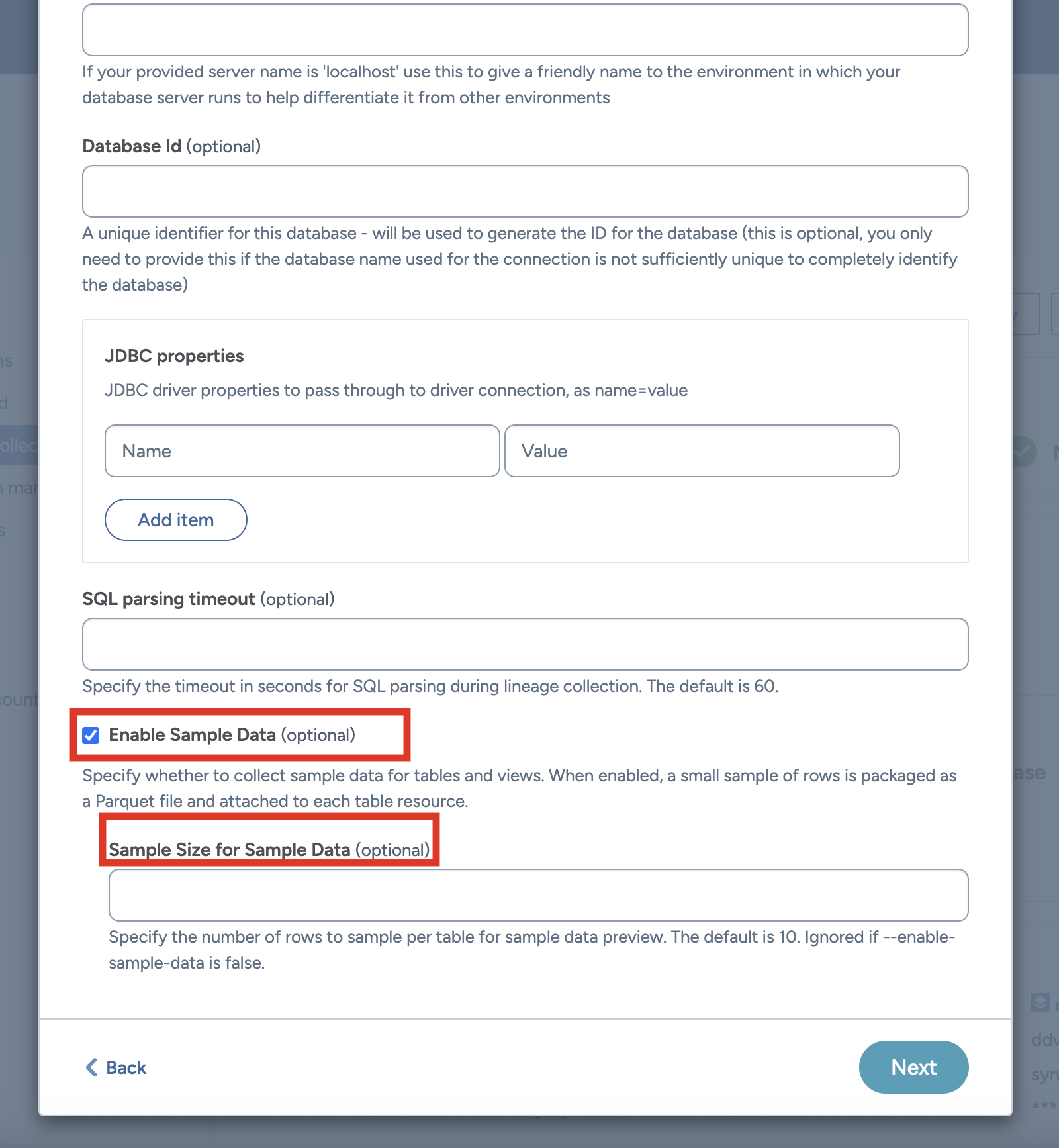
Enable Sensitive Data Classification to mask or exclude sensitive columns. Masking is applied before the data is displayed, so sensitive values are never sent to the catalog UI in the clear.
Viewing sample data
To view sample data:
Browse to a table or view resource.
On the Overview tab, locate the Sample data section.
Select Expand to view the sample in full-screen mode.
If Sensitive Data Classification is enabled, sensitive columns appear masked. You can see sample data only if you have View or higher access to the resource; Discover users don't see the Sample data section.