Managing business glossary hierarchy
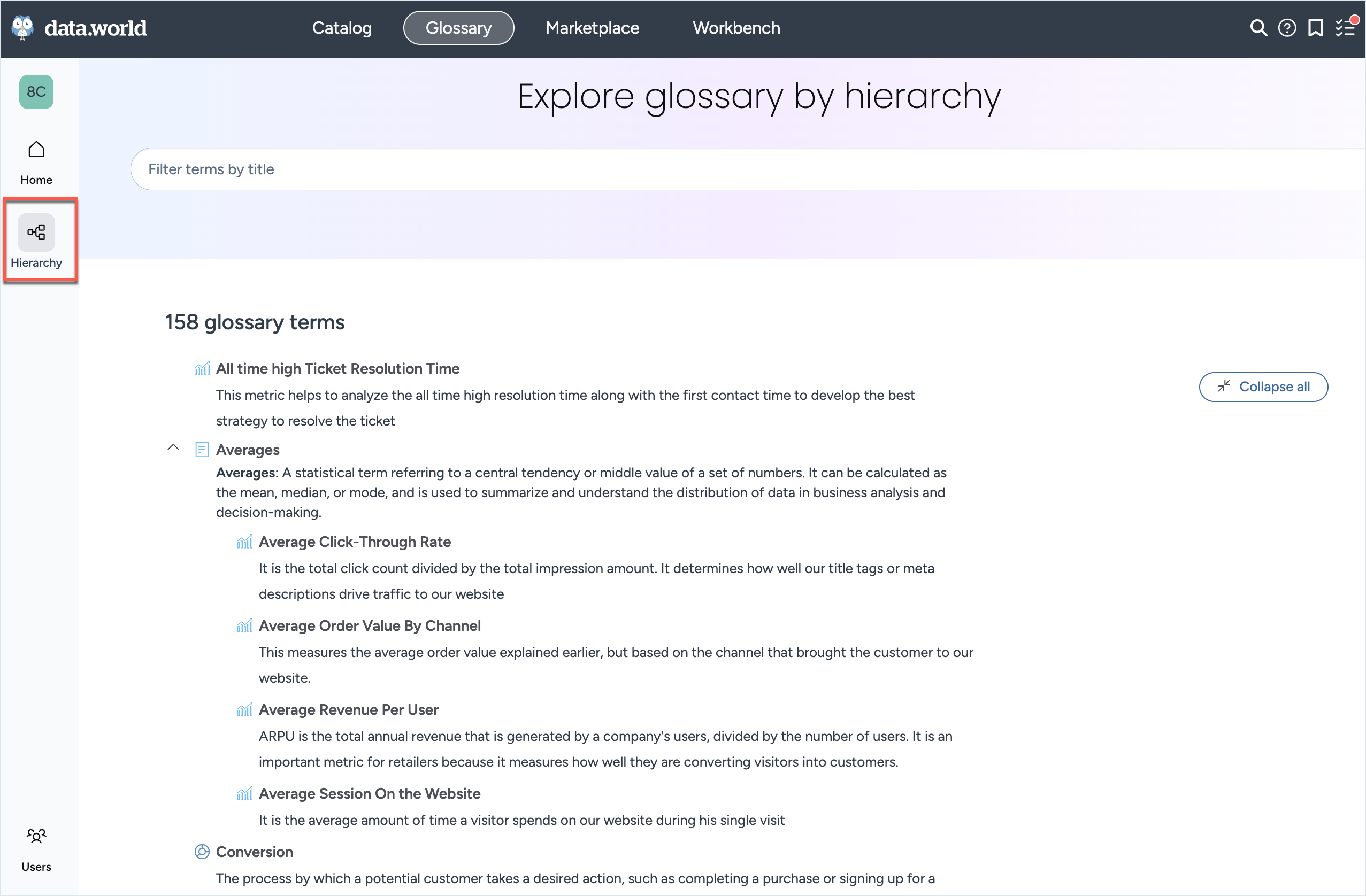
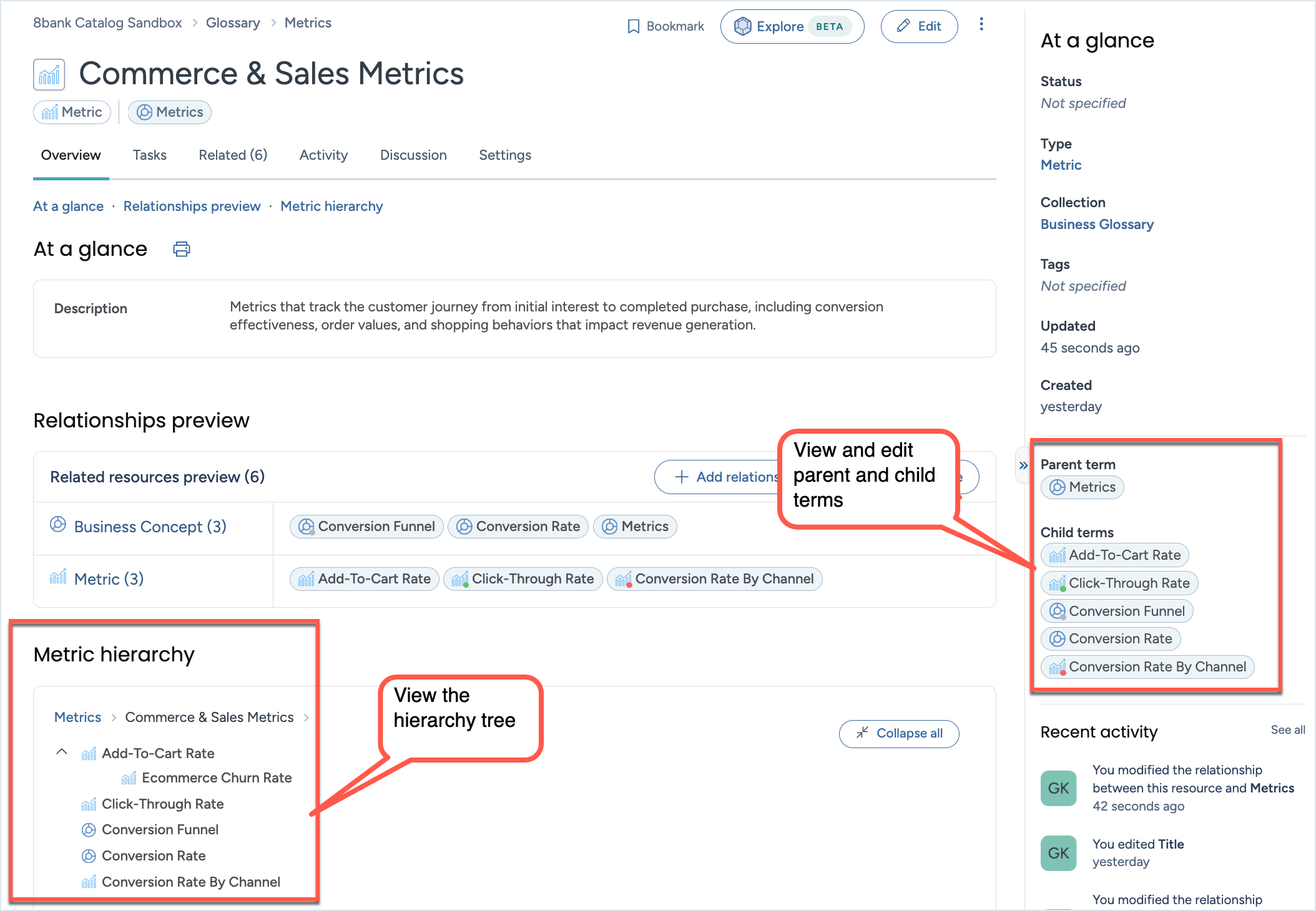
The Data Catalog includes a Glossary Hierarchy view that allows you to explore and organize your business glossary by concept hierarchy. The hierarchy uses a tree diagram to show parent-child relationships between business terms.
Hierarchy relationships appear as Relationship-as fields in the At a Glance section on the Overview page for glossary terms. This allows you to see both the parent and child relationships for any term.
Browsing the glossary hierarchy
The Hierarchy page within the Glossary experience displays your entire business glossary as a tree diagram showing parent-child relationships between terms.
All glossary term types are supported in this view, and terms are sorted alphabetically at each level for easy browsing. Note that only basic search is available in the Hierarchy view. Advanced filtering options found in other catalog search experiences are not supported here.
To access the glossary hierarchy:
In the Glossary experience, go to the Hierarchy page.
The tree diagram displays your glossary terms organized by their hierarchical relationships.
Click nodes in the tree to expand and reveal child terms, or collapse to simplify the view.
When you select or expand a term, its definition and overview information appear in a preview pane on the right side of the screen.
Navigate from top-level (parent) terms down to the lowest-level (leaf) child terms.
Setting up hierarchy relationships
You can configure glossary hierarchy relationships using any of the following methods. Choose the approach that best fits your workflow and the scope of changes you need to make.
Configuring single term relationships
When working with individual terms, you can set up parent-child relationships directly from the term Overview page using either the Relationship-as fields or the Relationships modal.
To configure single term relationships:
Edit the relationships using the Edit window:
On the Business term page, click the Edit button.
In the Edit window, in the About section, add the Parent term and Child terms.
Click Update.
Alternatively, use the Relationships model to add parent and child terms for the business term.
On the Business term page, click the Three dot button and select Edit relationships.
The Edit relationships window opens.
From the the Resource type dropdown, choose business term or a sub type for business terms, the type of resource you want to relate.
From the Relationship type dropdown, choose the type of relationship between the resources. Select from is parent of or is child of.
In the Related resource field, type the resource name and select it from the dropdown. To view all available resources of the selected type, type either the * or ? symbol.
Preview the changes and continue to add other relationships, if desired.
Click Update.
Next time you want to update the parent and child terms for this business term, you can do it using the in-line editing feature available on the Overview tab.
Configuring bulk relationships between business terms
The Relationship Bulk Edit modal enables you to configure multiple hierarchy relationships at once, making it the most efficient option for large-scale hierarchy setup.
Important
You can also do this task using the Quick editing tool available for bulk editing glossary terms.
To add relationships between business terms in bulk:
On the Business term page, browse to the Related tab. Here you can see all the related resources.
From the Actions dropdown, select Edit relationships.
The Edit relationships window opens.
In the Edit relationships window, click the Add resources in bulk link to relate multiple resources at once.
On the Specify details page, set the following parameters and click the Continue to select resources button.
From the Resource type dropdown, choose business term or a sub type for business terms, the type of resource you want to relate.
From the Relationship type dropdown, choose the type of relationship between the resources. Select from is parent of or is child of.
On the Select resources page, you can see all business terms of the selected type available for relation.
The Filters panel includes various filters to narrow down your search results. The Search bar allows you to quickly find specific resources. Utilize the filter tools, search options, and advanced search capabilities to hone in on the specific resources you want to relate.
Choose the resources for relating and loop through the various search methods to get your list ready for relating. The list of Selected resources is maintained as you scroll through different search options in preparation for relating.
The Select resources screen has a paginated list of resources with 50 resources per page, with a maximum of 2000 resources. If you have more than 2000 resources for a type, you will need to apply filters to gain access to additional resources that are initially not visible.
Once you have selected all the resources you want to relate, click the Review changes button.
On the Review changes page, review the relationships. You can remove resources by clicking the Remove button next to the relationship.
Click the Save changes button. You can now see your changes in the Related tab.
To remove relationships in bulk, simply select the related terms from the Related tab. From the Actions button, select Remove selected relationships.