Viewing and downloading explorer lineage
Viewing Explorer lineage
Important
To view the list of data sources for which automated lineage collection is available, please see Supported sources.
To view the Explorer lineage:
Locate a resource for which automated lineage metadata is available. On the resource page, browse to the Lineage preview section.
The Lineage preview section shows a preview of the asset that you are currently looking at and upstream resources from where this resource came from and downstream resources that are coming from this particular resource. This gives a quick overview of how the resource fits into the larger landscape.
Click the View Lineage button to browse to the Lineage tab. Here you can see the full details and interact with the lineage information. If you want, you can click the Fullscreen button to open Lineage in fullscreen mode.
Interacting with the Explorer lineage
To interact with the Explorer lineage:
On the resource page, go to the Lineage tab. Interact with the lineage on the tab, or click the Maximize lineage button to open the lineage in full screen mode.
The left-side shows the Lineage summary which summarizes all the resources that are part of the specific lineage. Click through to the various nodes in the summary view or use the Filter resources option to find the resource by name.
The focused asset appears in the diagram with upstream sources and downstream consumers, organized by degree of separation. The sidebar lists every asset in the lineage. This is the same data flow that the asset participates in, presented visually so that you can trace dependencies in either direction
Review the lineage tree in the sidebar.
The sidebar groups assets by direction — Upstream, Lineage Target, Downstream, and Ignored — and by degree of separation within each direction. To narrow the list, enter text in the Filter assets field.
Select an edge in the diagram to inspect its lineage relationships.
A numbered badge on the edge shows the count of bundled relationships. Selecting the edge reveals the table-level and column-level dependencies it represents.
Expand a container node to reveal the assets inside.
Containers — such as databases that contain schemas, tables, and columns — appear as single nodes by default. Expanding a container reveals its nested assets so that you can examine the lineage in more detail.
Select a node to open the asset preview panel and view its details.
The preview panel shows the asset name, hierarchy, type, original name, and recent activity. To navigate to the asset's full page, select the link next to the asset name.
Focus on a node to narrow the view to a specific path.
Other assets are hidden and move to the Ignored group in the sidebar. To restore the hidden assets, select Unignore.
Use the controls in the diagram toolbar to zoom in, zoom out, or recenter the visualization.
Downloading Explorer lineage
The system provides an option to export and download Explorer Lineage information as an excel file.
To download the Explorer lineage information:
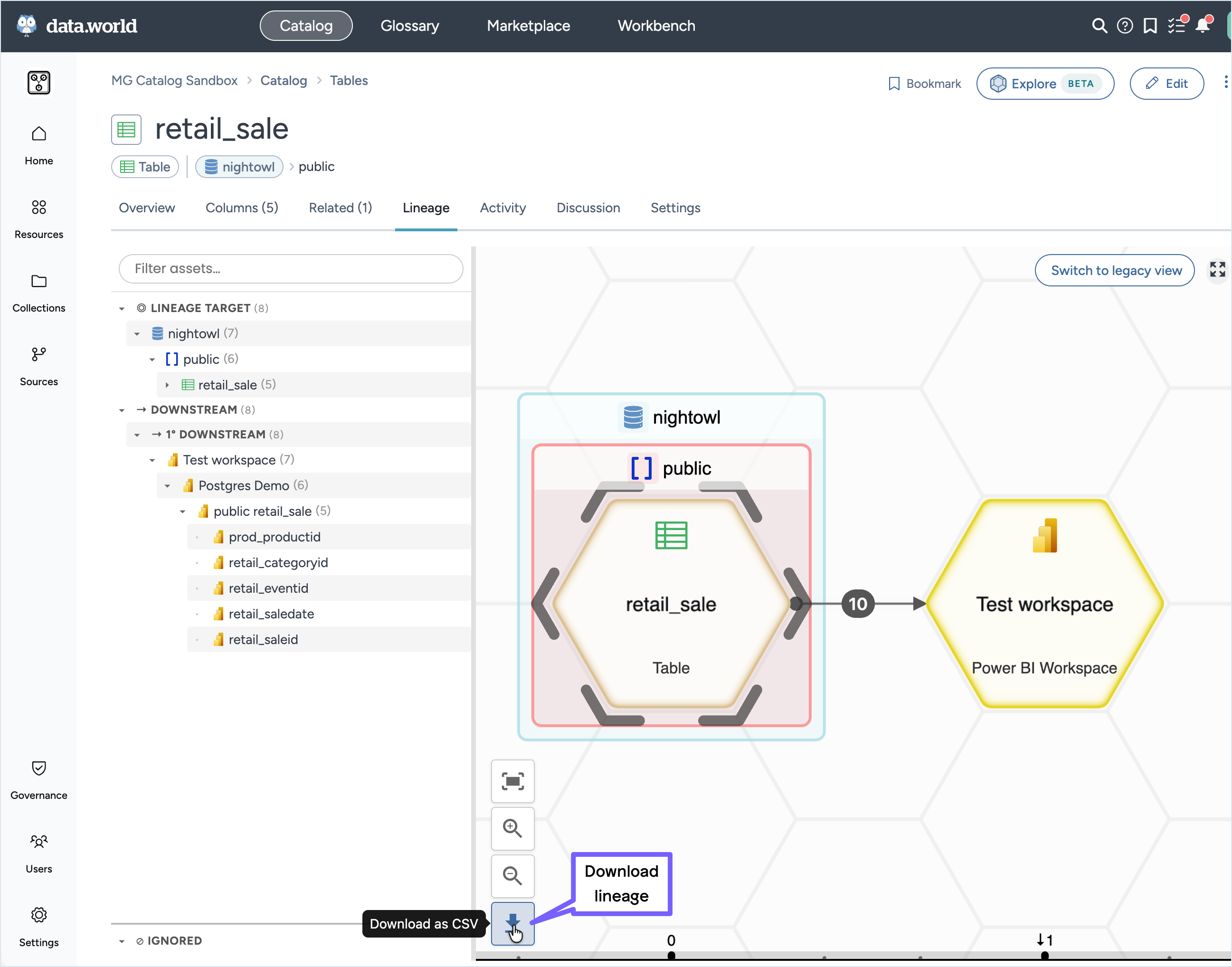
On the resource page, browse to the Lineage tab. Click the Download as CSV button.
The Download lineage of this resource window opens. Select the following:
Lineage: Select if you want to download only upstream or downstream information or both.
Upstream: Select if you want to download all levels or specify the number of levels for download.
Downstream: Select if you want to download all levels or specify the number of levels for download.
Click the Download button to download a copy of the information.